Settings
Changes apply immediately, with no restart.
Settings page.
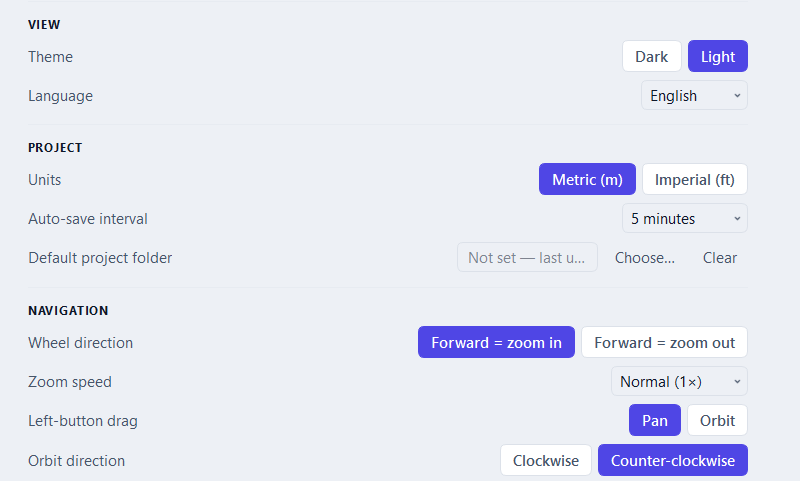
- VIEW — Theme (dark or light) and Language.
- PROJECT — Units (metric or imperial), the Auto-save interval and the Default project folder.
- NAVIGATION — Wheel direction, Zoom speed, what a Left-button drag does (pan or orbit) and the Orbit direction.
- ANALYSIS — the Slope measurement base.
- REPORT — the Prepared by name and the Company Logo printed on PDF reports.
- SHORTCUTS — the tool keys can be changed here.
The account and licence cards sit at the top of the same page and are not shown in these screenshots.
Built-in help
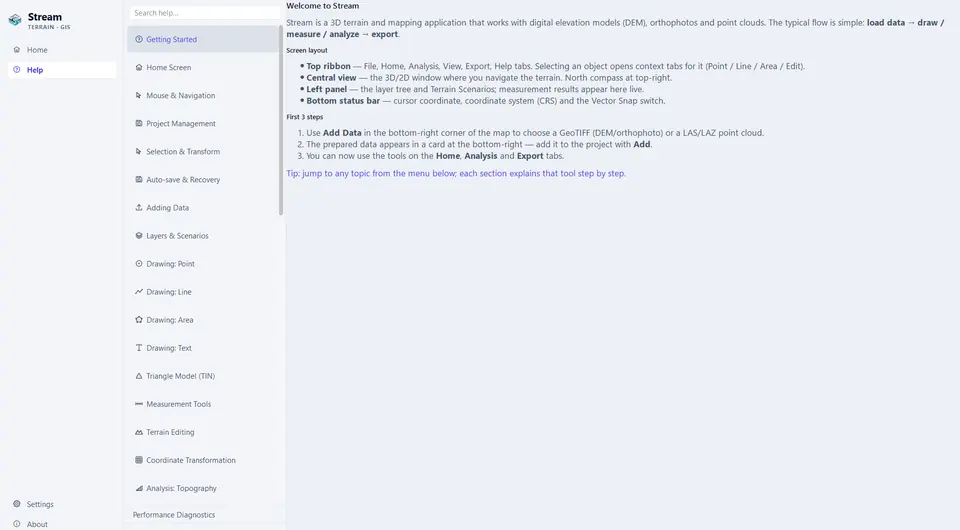
Press F1 at any time: the help opens on the topic of the tool you are using. The Help page of the Home screen holds the complete guide with a search box that matches titles and body text.
Help page.
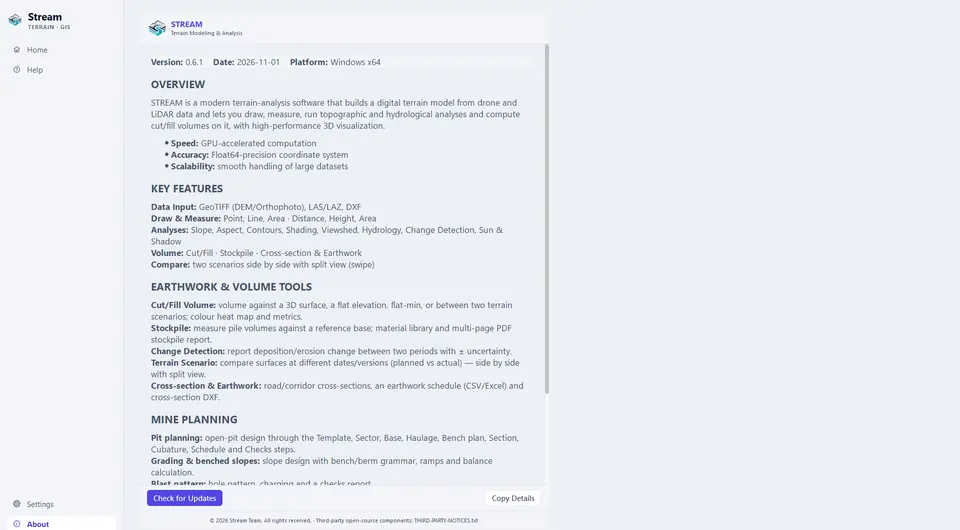
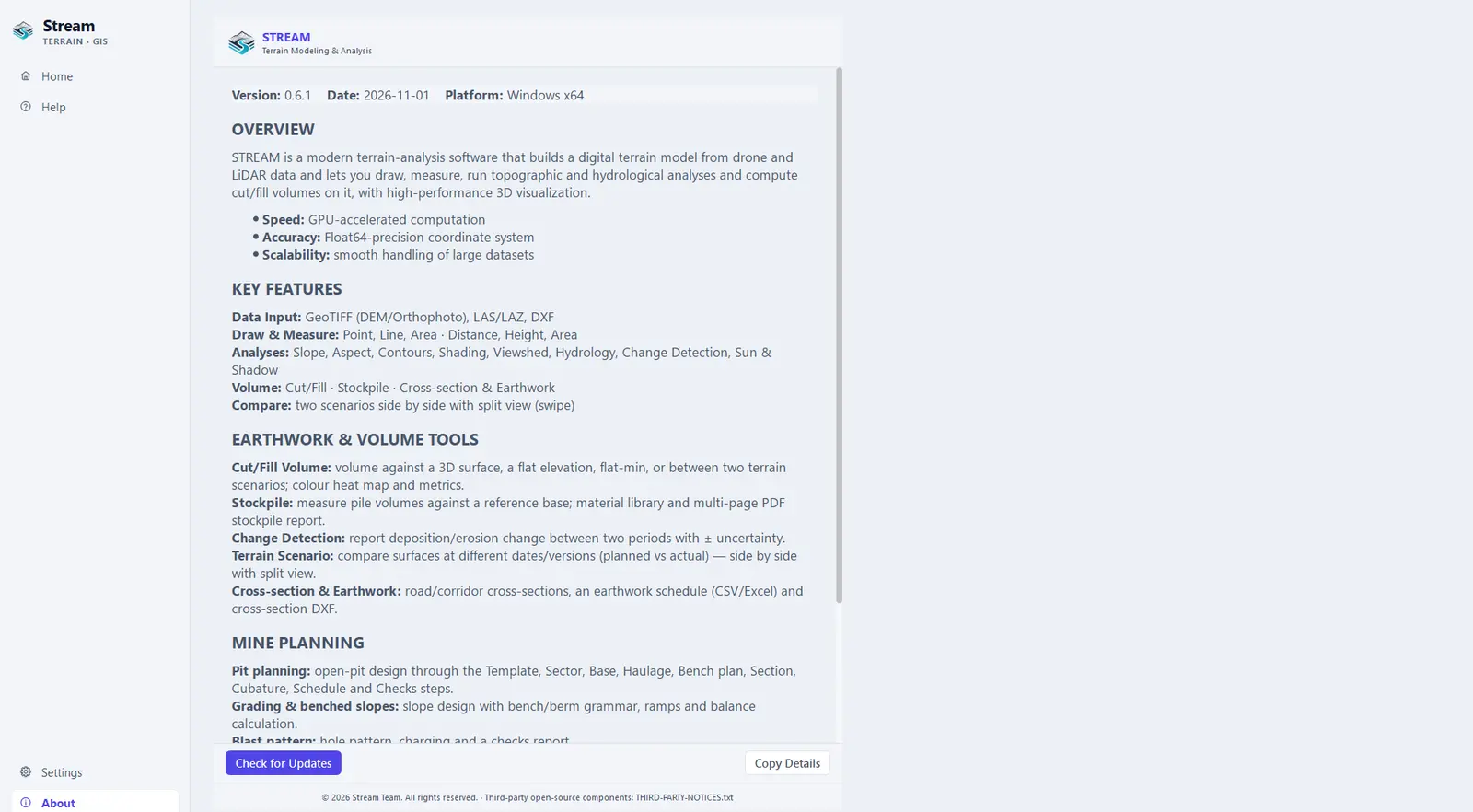
About
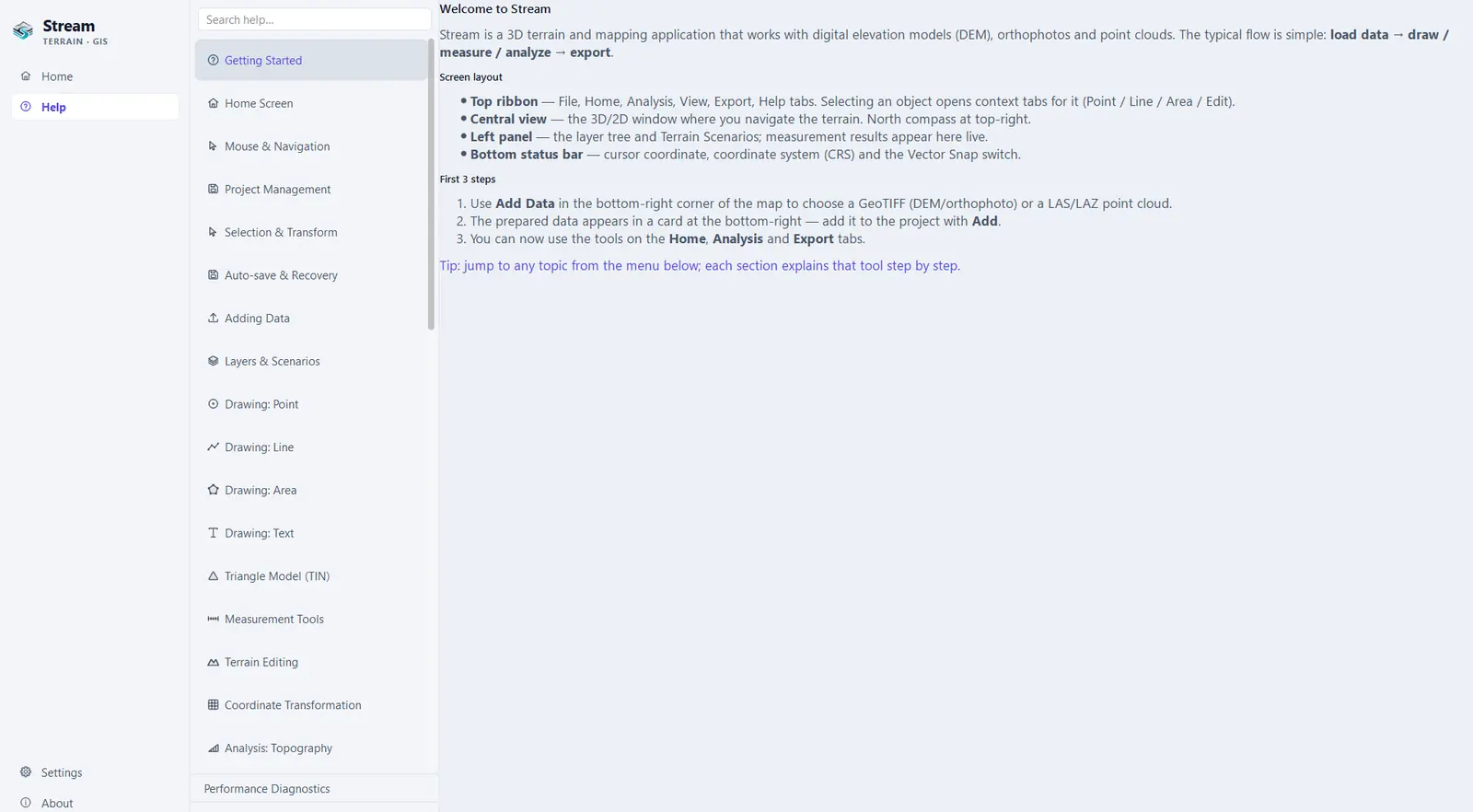
The About page shows the version, the build date and the platform, the product overview, Check for Updates, Copy Details (puts the version details on the clipboard) and the third-party notices.
About page.
Keyboard and mouse summary
| Key or action | What it does |
|---|---|
| Left click | Places a point or vertex when a tool is active; selects an object otherwise |
| Right click | Finishes the drawing or measurement |
| Double right click | Leaves the tool |
| Esc | Cancels the drawing in progress |
| Ctrl+Z / Ctrl+Y | Undo / redo |
| Ctrl+N / Ctrl+O / Ctrl+S / Ctrl+Shift+S | New project / open / save / save as |
| L | Load data |
| S | Selection mode (leave the tool) |
| M | Measure distance |
| P / C / A | Draw a point / line / area (the same key closes the tool) |
| Ctrl+C / Ctrl+V / Del | Copy / paste / delete the selected object |
| Ctrl+A | Select all |
| Ctrl while selecting | Add to the selection |
| Ctrl+2 / Ctrl+3 | 2D / 3D |
| Home | Zoom to extent |
| F3 | Vector snap on / off |
| F2 | Rename the selected layer or record |
| Ctrl+F | Search layers |
| Ctrl+K | Command search: find any ribbon tool by typing its name and run it |
| Ctrl+G | Go to a coordinate |
| Ctrl+Shift+C | Copy the coordinate under the cursor |
| F1 | Help for the active tool |
| Mouse wheel | Zoom toward or away from the cursor |
| Left-button drag | Pan |
| Middle-button drag | Orbit in 3D |
| Arrow keys | Pan · with Shift: rotate and tilt in 3D |
| + / − | Zoom in / out |
| Double-click the compass | Top-down view, north up |
If the terrain feels slow
STREAM draws the terrain on the graphics card and selects the high-performance card by itself at every start. If the terrain is slower than expected, update the graphics driver from the vendor site, plug the laptop in (cards are throttled on battery) and open Help ▸ Performance Diagnostics to see which card is in use.
STREAM needs at least 1536 × 824 usable pixels after Windows display scaling — for example a 1920 × 1080 screen at 125 percent. At a higher scale the window may not fit: the program says so at start-up. Lower the Windows display scale or use a higher-resolution screen.
Back to the manual contents.